BatchCraft production guide / PDF export
How to reduce Figma PDF file size without flattening the useful parts.
A smaller PDF is only better if the handoff still works. Use this checklist to reduce weight, preserve supported text and vectors, and catch problems before the file reaches a client or printer.
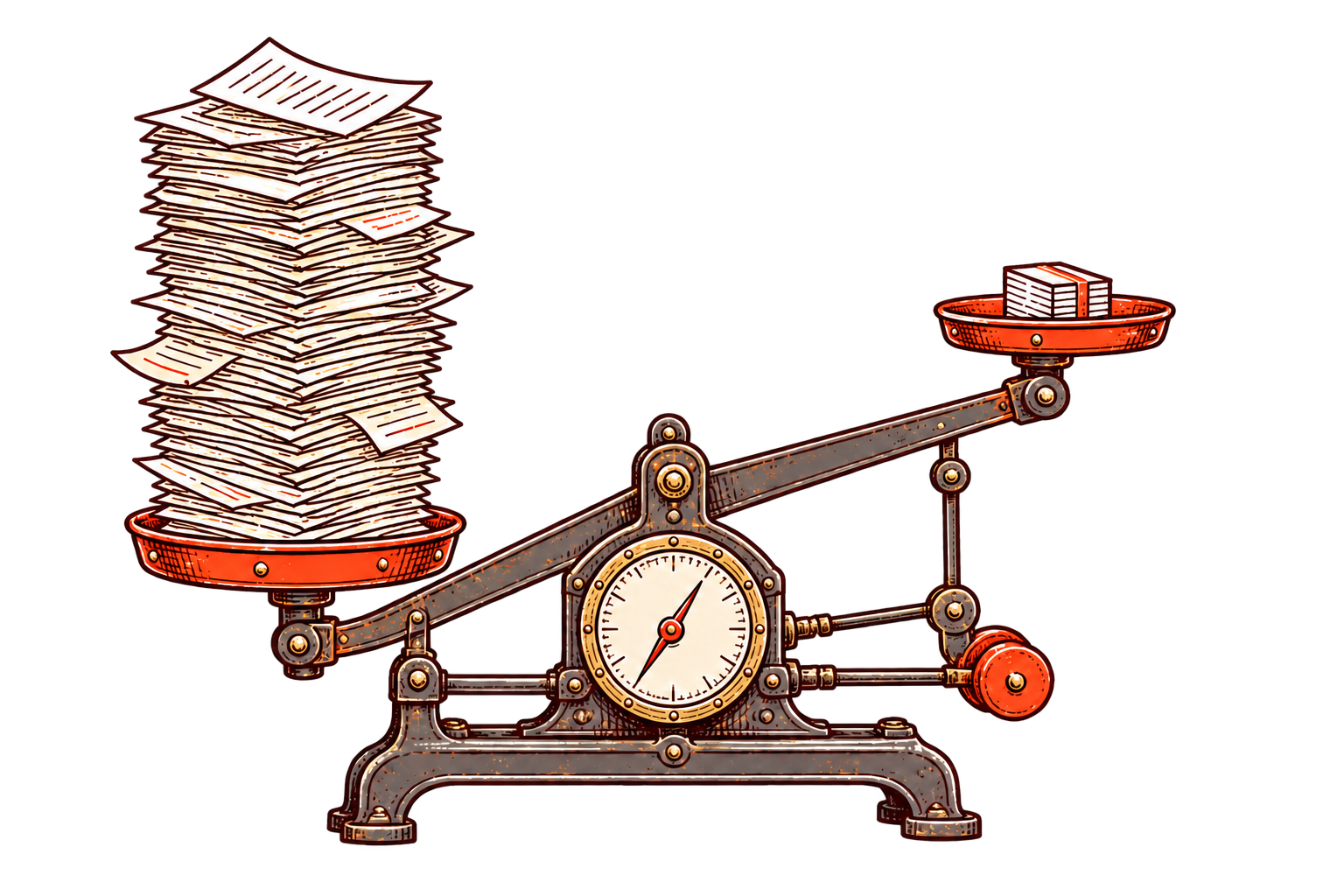
Why the file gets heavy
Treat images, text and vectors as different materials.
PDF size is usually driven by the material inside the pages, especially raster images and their effective resolution. Complex artwork, transparency and font handling can also affect the result. One global “compress” button cannot know which details matter to your handoff.
Figma’s native PDF export produces PDF 1.7 files and exports text as glyphs. Figma notes that this text is not editable in the final PDF, although it can still be selected and copied in compatible viewers. Read the current details in Figma’s export documentation.
The five-step production check
Compress with a reason.
Confirm the handoff
Decide whether the PDF is for email, review, web delivery or print. The right image quality depends on where the file is going.
Order the pages
Select only the frames or Buzz assets that belong in the document, then verify their final order before export.
Choose a sensible preset
Use Print for high-quality output, Balanced for everyday handoffs or Small File when distribution speed matters most.
Inspect the actual PDF
Open the result in Acrobat. Check page count, order, file size, image clarity, vector edges and whether important text can be selected or searched.
Keep the source
Never overwrite the only copy of a production PDF while testing stronger compression. Compare versions against the same acceptance checklist.
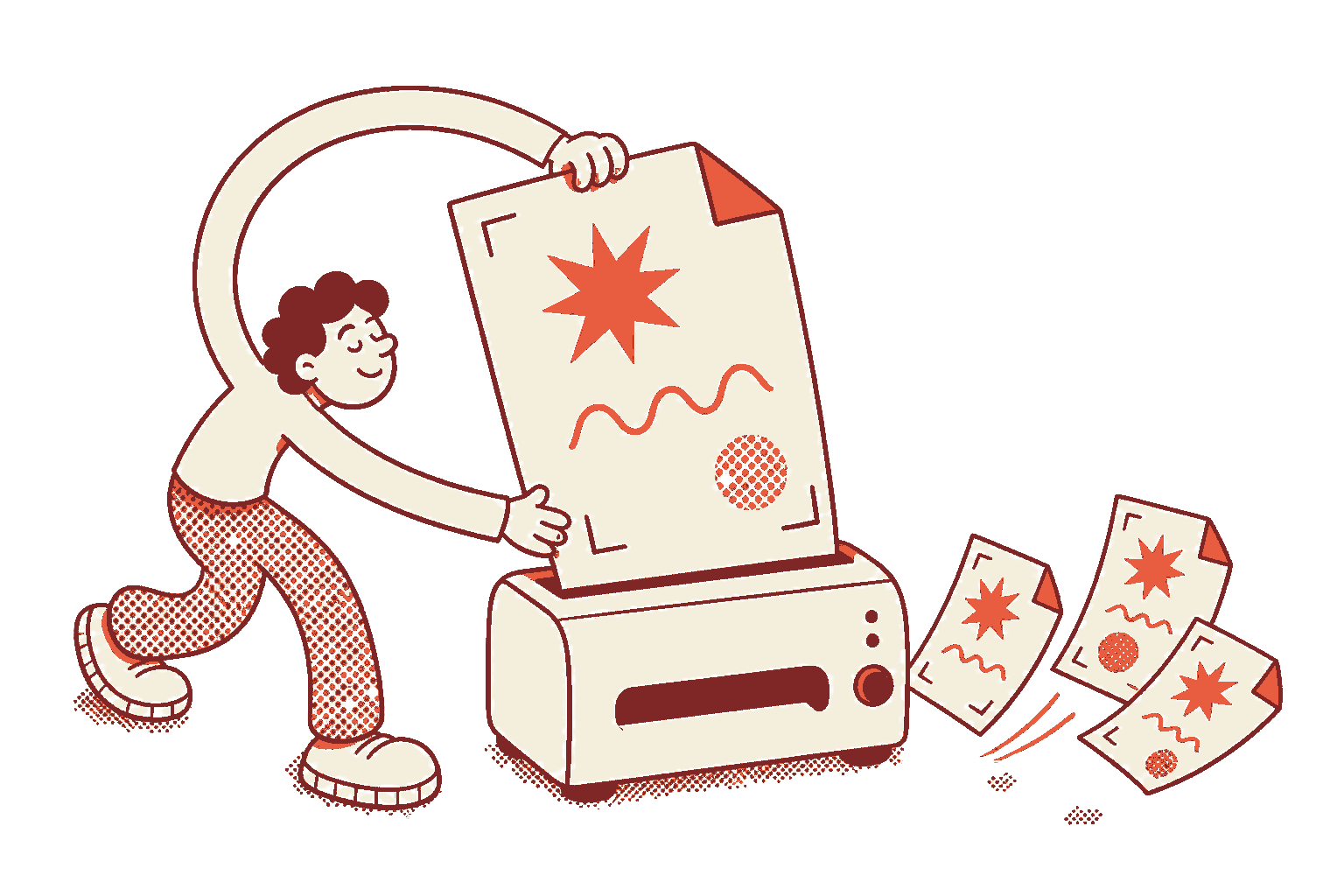
One measured example
A 52-page catalogue became approximately 83% smaller.
This is a concrete test result, not a universal promise. Results vary by document. The important part of the test was not only the final megabytes: page order, visual quality, supported text and vectors were checked as part of the same handoff.
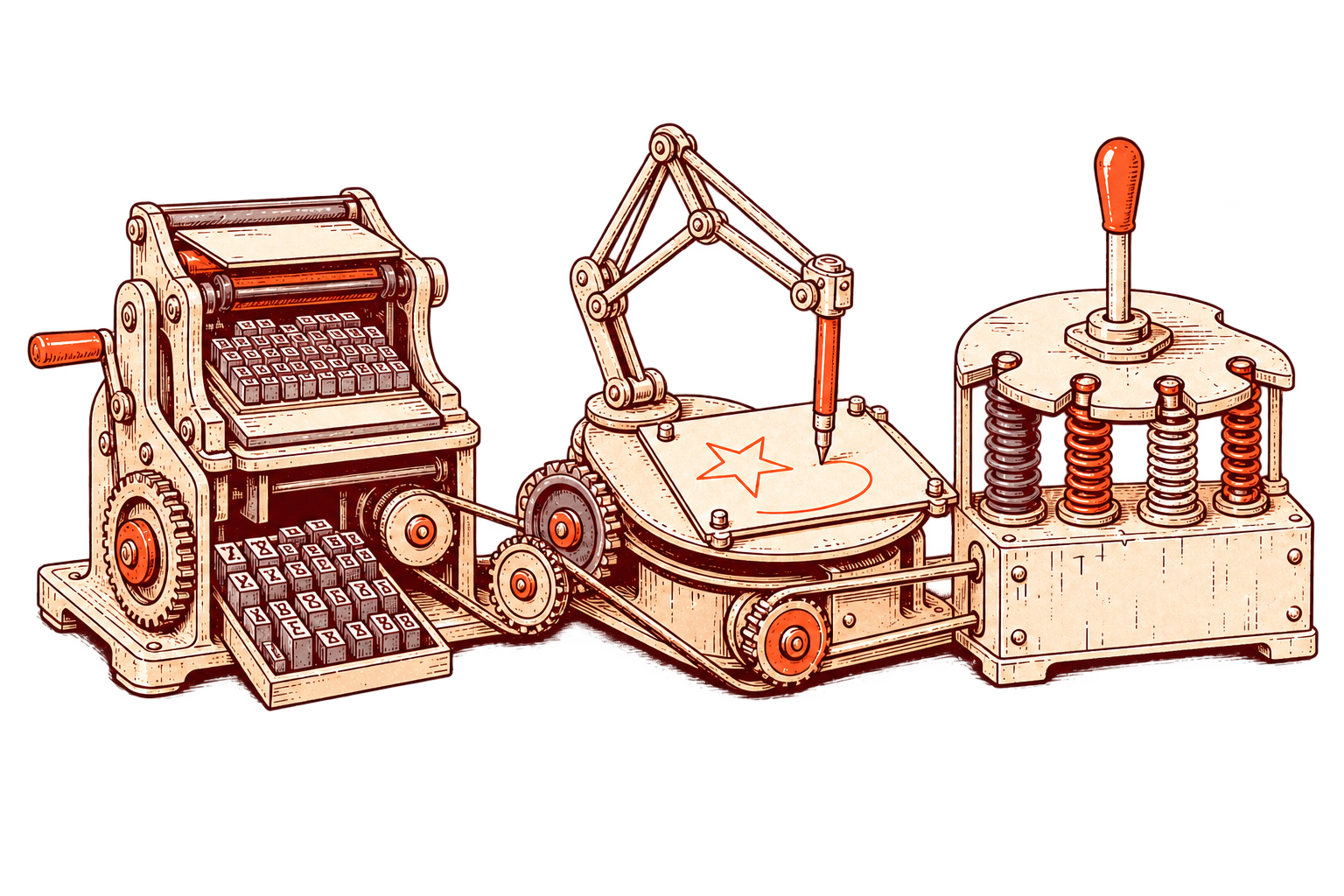
Choose the workflow, not just the smallest number
Three ways to finish the PDF.
Acrobat’s official guidance explains how its optimizer changes images, fonts and other objects. Review Adobe PDF Optimizer settings before aggressive post-processing.
Important distinction
Selectable text is not the same as an accessible PDF.
A compliant accessible PDF may also need tags, correct reading order, document language, alternate text and manual checks. When accessibility is required, use Acrobat’s accessibility checker and repair workflow after export.
Questions designers ask before export
Figma PDF size FAQ.
Large raster images, high effective resolution and complex page artwork are common contributors. The fastest diagnosis is to compare a representative page, then change one export variable at a time.
Yes. Use an export workflow that treats images, text and vectors separately. Supported text can remain selectable and clean vectors can remain sharp while images receive controlled compression.
No. Selectable text is useful, but accessibility also depends on tags, reading order, document language, alternate text and other structure. Verify accessibility separately in Acrobat when it is required.
No. That was one measured 52-page catalogue test. The result for another document depends on its images, fonts, vectors and export settings.
Five successful exports are free, up to 100 pages each.
Test one real production file.
Use the same source, compare the output, and keep the version that survives your actual handoff.